
GUIDE / FIT & SIZING
How to add and test a Shopify size chart.
A size chart helps shoppers compare measurements. The size picker chooses the variant they buy. Set them up separately, then test them together on a real product.
Decide which products can share a chart
Start with one product from each fit or garment family. If all jeans share the same measurements, maintain one chart for that group. If a cut runs differently, give it a separate chart or fit note. State whether measurements describe the garment or the body, and label inches or centimeters in the table.
Connect a size chart with a product metafield
Use a page reference if each product needs to point to one of several reusable size chart pages. The theme must support a pop-up block whose page setting accepts a dynamic source.
- Create a Shopify page for each chart, such as Straight Jeans Size Chart. Add a table with the size, waist and inseam, and label the units.
- In Settings → Custom data → Products, add a definition called Size chart and select Page as the type. On each applicable product, select the matching chart page in the Size chart metafield.
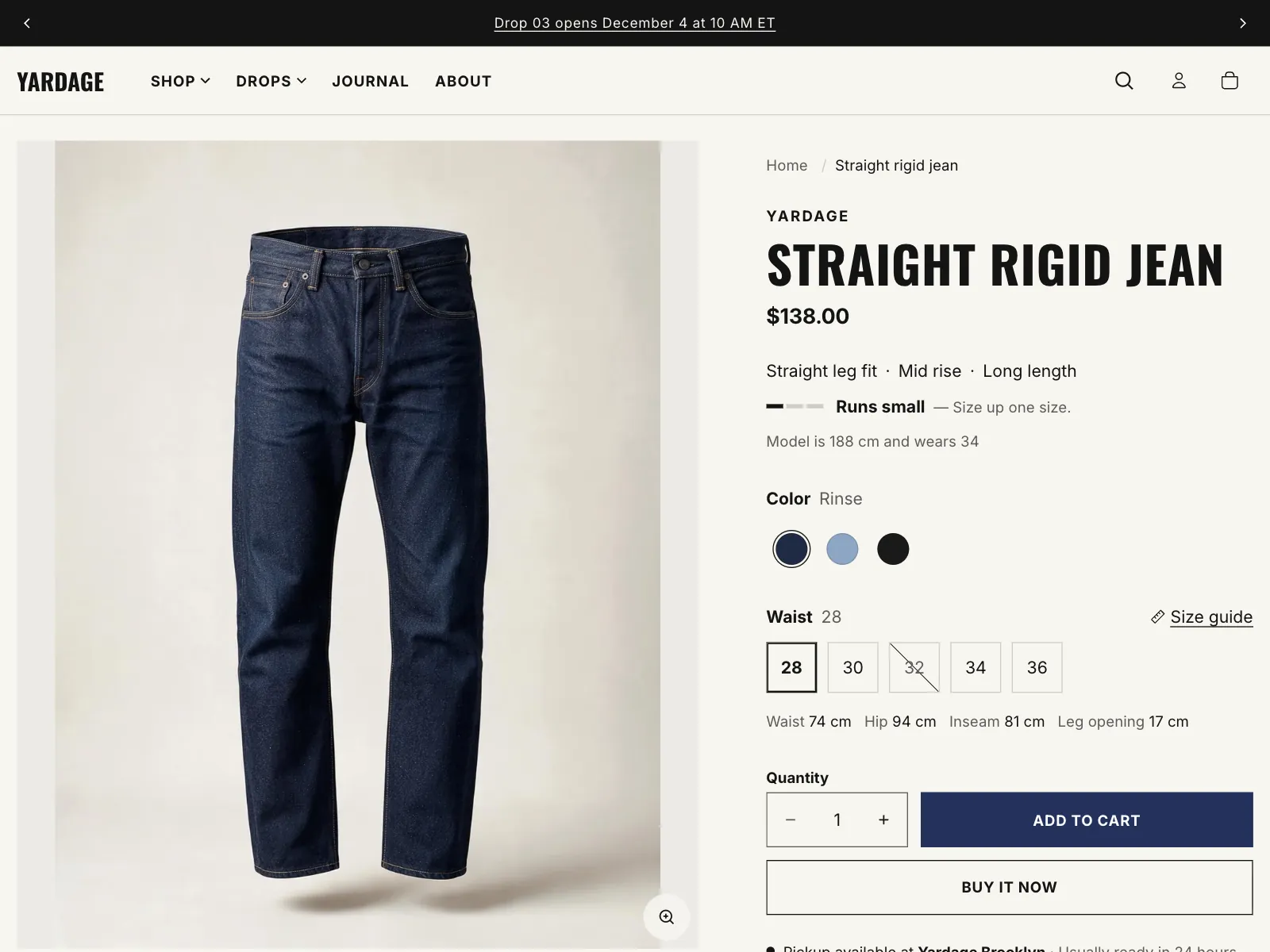
- In the theme editor, open the product template and add a Pop-up block in Product information if your theme offers it. Next to its page setting, choose Connect dynamic source and select Size chart. Label the link Size guide and place it near the picker.
- Preview two products with different chart pages and a third with the field empty. Check that no broken or empty size guide appears on the third product.
Check what the shopper can actually buy
- Test an in-stock size, an existing sold-out size and a combination you do not carry. Select a different color and verify that availability updates.
- Close and reopen the chart. Confirm that the selected color and size still match the product, quick-buy view, and cart line.
- If you require an explicit size choice, test a fresh visit and a link to a specific variant. Confirm that the linked variant and add-to-cart behavior match your intent.
Use the fit and sizing controls in Yardage
Yardage 1.0.0 supports up to four charts in Theme settings > Fit and sizing, matched by product type or tag. In the same area, Ask shoppers to choose a size controls whether an unselected product opens without a preselected size. The fit and sizing guide explains how a direct variant link affects this behavior.
Make the check reproducible
Record the theme version, affected template, device or viewport, app settings, steps, and expected result. Include a screenshot or short recording when the behavior is visual. Repeat the same steps after the change so your team can assess what improved and what still needs work.